HAK5 Shark Jack Display
At first glance, a network port may seem unspectacular. For administrators, penetration testers, and red teams, however, it quickly raises important questions: Is the port active? Which IP address is assigned? Which network segment is it connected to? And are VLAN separation, firewall rules, and access controls actually working as intended?
The new Hak5 Shark Jack Display was designed for precisely these types of checks. The compact network tool connects directly to an Ethernet port and can execute prepared payloads for network reconnaissance, diagnostics, and IT automation.
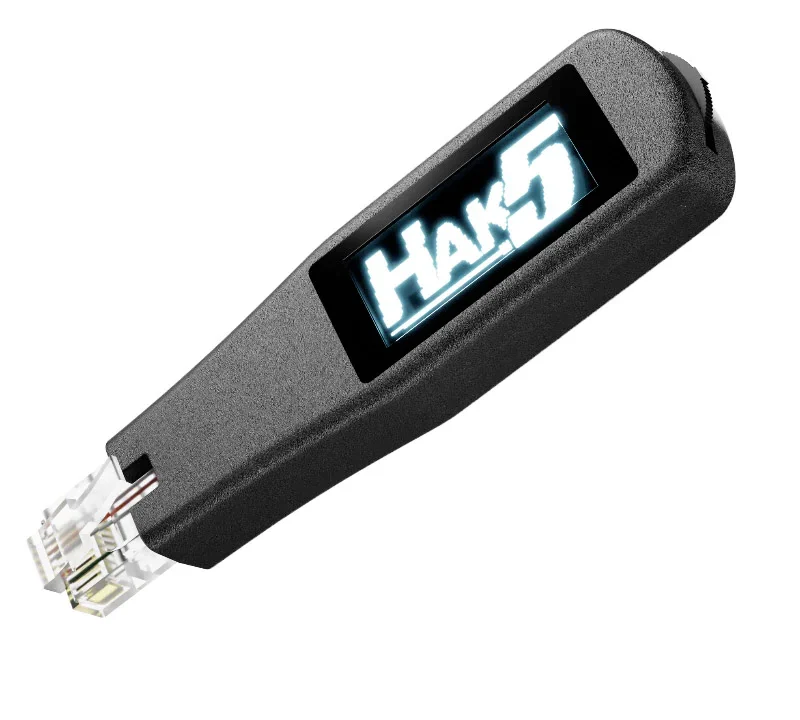
The biggest difference compared with earlier Shark Jack models is the integrated OLED display. Results, status information, and payload selection are shown directly on the device. This allows many on-site tests to be carried out without constantly opening a laptop or establishing an SSH connection first.
Further product information and ordering options are available on the Hak5 Shark Jack Display product page in the HackmoD Shop.
What Is the Hak5 Shark Jack Display?
The Shark Jack Display is a portable, Linux-based tool for authorized network assessments and administrative tasks. It is designed for professional users who need to inspect wired networks quickly or automate recurring diagnostic procedures.
The device is plugged directly into an RJ45 network port. The user can then select and launch a prepared payload using the side-mounted rocker switch. The most important information is displayed immediately on the integrated screen.
The Shark Jack Display can be used for:
- network reconnaissance and inventory
- checking Ethernet ports
- diagnosing IP and DHCP configurations
- verifying VLANs and access restrictions
- authorized penetration testing
- standardized IT automation tasks
Hak5 describes the device as a portable tool for penetration testers and system administrators. The official documentation covers basic operation, Linux access, software updates, and the development of custom payloads.
The Display Improves Practical Use
Earlier Shark Jack models mainly communicated the status of an action through a multicolor LED. This approach is fast and discreet, but it provides only limited information during on-site work.
The new model features a high-contrast 1.2-inch OLED display with a resolution of 128 × 64 pixels. The spring-loaded rocker switch can be used to navigate menus, select payloads, and review results. The device also includes an illuminated RJ45 connector, USB-C charging, and a replaceable battery.
In practice, this is a significant advantage. An administrator can see directly at the network port whether an IP address has been assigned, whether a test has completed successfully, or whether a selected target is reachable.
This can save considerable time during assessments in server rooms, office buildings, branch locations, or data centers.
Payloads, Linux, and Custom Automation
The Shark Jack Display runs so-called payloads. These are prepared workflows that automate specific network and diagnostic tasks.
The device already includes payloads for quick Nmap scans, LLDP detection, connectivity tests, IP information, and the collection of basic client data.
Advanced users can develop their own payloads using Bash and DuckyScript. SSH access to the device’s Linux environment is also available. This makes it possible to create organization-specific testing procedures, for example for recurring checks of network ports at multiple locations.
An IT service provider could prepare a standardized payload that performs the same approved checks at every customer site and stores the results in a consistent format.
Practical Example: Checking Network Ports in a New Office
A typical use case is the technical acceptance testing of a new office location.
Imagine that several Ethernet ports have been installed in conference rooms and publicly accessible areas. According to the network design, these ports should only connect to a restricted guest or presentation network. Internal servers, administrative networks, and management systems must not be accessible from these ports.
Despite careful planning, incorrectly configured switch ports, faulty VLAN assignments, or incomplete access control lists may allow more access than intended.
The administrator connects the Shark Jack Display to each relevant port. A prepared diagnostic payload can then check:
- whether the physical network link is active
- whether an IP address is assigned via DHCP
- which gateway and DNS servers are being used
- which IP range the port belongs to
- whether predefined internal or external test targets are reachable
The most important results are shown directly on the display. This allows the technician to determine on site whether the configuration matches the intended network design.
An authorized reconnaissance scan can then be performed within the approved test scope. If systems become visible that should not be reachable from the relevant VLAN, the network configuration may require further investigation.
SharkLink: Testing Network Segmentation in Practice
One particularly useful feature is SharkLink. Two Shark Jack Display devices are connected to different network ports and then test whether they can detect and communicate with each other.
This can be used to check:
- VLAN segmentation
- firewall rules
- access control lists
- connectivity between two network ports
SharkLink first performs a discovery phase and then carries out a direct connection test between the two devices.
For example, one device could be connected to a guest network and the second to an internal administration network. If communication is possible despite the intended separation, the switch, firewall, and VLAN configuration should be reviewed.
The advantage is that the test does not merely verify what should be allowed or blocked according to the network diagram. It checks the actual connection between the physical network ports.
Who Is the Shark Jack Display Designed For?
The device is primarily intended for professional users who regularly assess wired networks:
- penetration testers and red teams
- network administrators
- internal IT security departments
- system integrators and IT service providers
- managed security service providers
- incident response teams
- public-sector, research, and educational organizations
- companies with multiple offices or branch locations
The display also makes the device useful for training environments and test labs. Participants can immediately see which payload has been selected and what result the test has produced.
Battery Life and Power Supply
The Shark Jack Display includes a replaceable lithium battery and is charged via USB-C. According to Hak5, typical operating time with a fully charged battery is approximately 25 to 35 minutes. For longer assessments, the device can also be powered using a USB power bank.
It is therefore particularly well suited to short, targeted on-site checks. An external power source is recommended for longer sessions.
Not a Replacement for a Full Penetration Test
The Shark Jack Display does not replace a comprehensive security assessment. Complex attack-path analysis, vulnerability evaluation, and the examination of larger network environments still require additional tools and experienced security professionals.
Its strength lies in fast, repeatable testing directly at the Ethernet port. The device can help collect initial information, identify misconfigurations, and execute standardized procedures efficiently.
Conclusion: Compact Network Analysis with Direct Feedback
The Hak5 Shark Jack Display is a useful evolution of the established Shark Jack concept. The OLED display, direct payload selection, Linux environment, and features such as SharkLink make it a versatile tool for network administration and authorized security testing.
Its practical simplicity is particularly compelling: connect the device, select the appropriate payload, and review the most important results directly at the network port.
For administrators, IT service providers, penetration testers, and red teams, the Shark Jack Display offers a compact way to diagnose Ethernet ports, verify network segmentation, and automate recurring testing procedures.
Product details and ordering options are available here:
View the Hak5 Shark Jack Display at HackmoD
Legal notice: The Shark Jack Display may only be used on networks you own or where you have received explicit authorization from the owner. Unauthorized access to third-party networks may be illegal.
Frequently Asked Questions
What Is the Difference Between the Shark Jack and the Shark Jack Display?
The Shark Jack Display expands the existing concept with an OLED screen, direct menu navigation, and interactive payload selection. Results and status information can therefore be viewed directly on the device.
Do You Need a Laptop to Use the Shark Jack Display?
A laptop is not required for many prepared tests. However, a computer remains useful for developing custom payloads, accessing the device via SSH, and carrying out more detailed analysis.
What Can Be Tested with SharkLink?
SharkLink checks the connection between two Shark Jack Display devices. Administrators can use it to verify VLAN separation, firewall rules, access control lists, and connectivity between two network ports.